
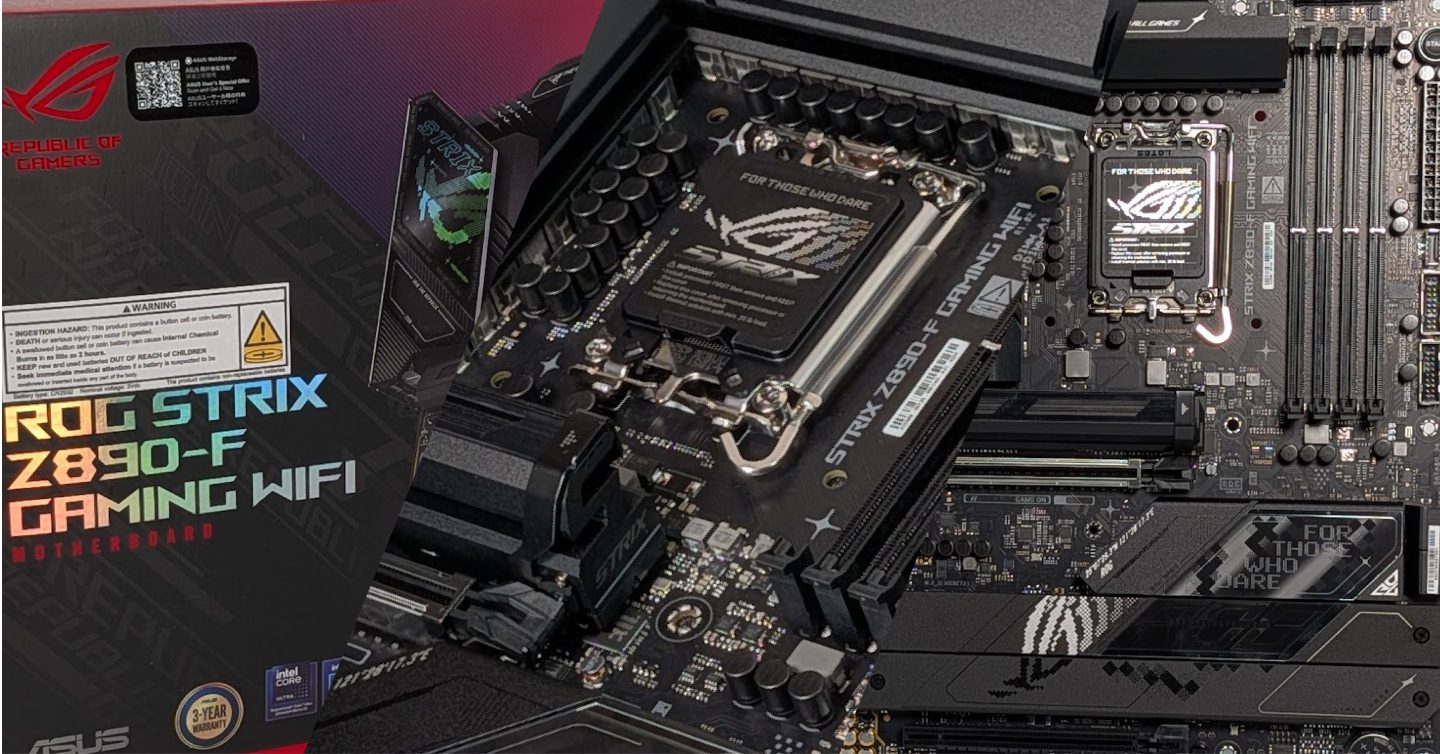
The motherboard in a computer is the main circuit board that connects all the other components together by powering and passing information between all components such as storage drives and processors. The motherboard is the foundation of a computer, and compatibility with all components, and future components, needs to be considered when choosing one alongside ensuring it fits inside your chosen case.
1-Up Guide: This article is aimed at gamers interested in building their first computer and may simplify or skip over more advanced concepts that are well out of scope for a first build.
There is a glossary at the bottom with details on technical terms.
Thinking of the motherboard as the highway between towns, it doesn’t matter how big the towns are, or how many cars they have, once the motherboard is in your computer, the highway speed limit and lane count are set until the motherboard is replaced therefore it is certainly worth spending some time picking the right board.

The Central Processing Unit (CPU) relies on the motherboard to access memory (RAM), the Graphics Processing Unit (GPU) relies on it to transfer data to and from the CPU, and storage devices connect through it to deliver files and applications. Even power delivery is routed through the motherboard, ensuring each component receives the correct voltage and stability. Every part of a computer ultimately talks through the motherboard, making it the central meeting point where all hardware interactions take place. It is worth noting that whilst almost all gaming graphics cards (GPU) get power directly from the Power Supply (PSU), they also consume a little from the motherboard as well. Nothing happens without the motherboard knowing about it.
What are the main considerations when making a purchase decision?
A motherboard’s design directly determines what hardware you can install in your computer. The CPU socket defines which processors are supported, while the chipset controls features such as PCIe lanes, USB ports, storage options, and overclocking capabilities. The form factor dictates the physical size of the board and how many expansion slots or (indirectly) connectors it can offer. Together, these elements shape the entire build, influencing everything from performance potential to upgrade flexibility.
Form factor
If the size and look of your computer is important to you, choosing a case, or at least case size should be done before choosing a motherboard so that you can immediately eliminate motherboards that do not meet your space requirements. Smaller motherboards can go in larger cases but is not a common practice since you will be sacrificing some ports and future expandability and honestly no visual benefit.
The standard sizes from largest to smallest:
- ATX
- Micro-ATX
- Mini-ITX

There are some other sizes out there but Gaming PCs steer well clear of them.
CPU socket
The CPU socket determines what generation/type of CPU are compatible with the motherboard, and alongside the Chipset, which brand of CPU. Most motherboard manufactures make comparable motherboards for both AMD and Intel for example the ASUS ROG STRIX X870‑F GAMING WIFI for AMD CPUs and the ROG STRIX Z890‑F GAMING WIFI for Intel CPUs are similar boards, which means you would be safe to pick your case and CPU, before your motherboard.
With unique pin layouts, power requirements, and thermal expectations, the physical socket ensures compatibility, but it also determines the performance ceiling and upgrade path of your entire system. A mismatch here means the processor simply will not fit.
Example socket types:
- AM4, AM5 – AMD
- LGA1700, LGA1851 – Intel
CPU Coolers mount over the CPU Socket, most CPU coolers come with brackets for both AMD and Intel sockets for the relevant generation, but it is worth making sure the Cooler supports the specific socket that way you can just focus on the thermal paste application that sits between the CPU and the Cooler. Many CPU coolers come with it pre-applied but if not, you will need to buy a tube of it. I recommend watching a half dozen YouTube Videos or Shorts/Reels/TikToks to get a bit of a feel for how much to apply to avoid any future performance issues.
Chipset
A motherboard has one defining feature that dictates what it can and cannot do even beyond what physical ports are available, and that is known as the “chipset”, it acts as the controller for many of the board’s functions, managing data pathways, storage options, USB ports, PCIe lanes, and general connectivity. Different chipset tiers offer different capabilities where some focus on basic everyday computing others unlock advanced features such as overclocking, high‑speed storage, and expanded connectivity. The good news is, each generation of motherboards typically launches with only a handful of chipset options, making it easier for builders to understand the feature differences and choose the right tier for their needs.
Example chipset names:
- Z890
- B860
- B850
The motherboard tiers from manufactures are built around these chipsets allowing you to focus less on it if you want and to shop by manufacture and brand/tier from said manufacture. For example, the ROG STRIX brand from ASUS pick from the higher end Chipsets for the board size, whereas the TUF Gaming brand, also from ASUS, may pick a more middle tier chipset to balance performance with price.
Memory slots
Memory slots, or DIMM slots, determine how much RAM a system can support and what type of memory it can use. The number of slots also affects upgrade flexibility for example you could consume two slots on a four-slot motherboard initially, and then easily add two sticks of RAM later on without decommissioning existing hardware.
Modern motherboards typically support either DDR4 or DDR5 memory sticks, each offering different speeds, latency characteristics, and importantly, pricing. Whilst DDR5 is newer and faster, the additional frames per second may not be worth the cost given the price of memory currently. Having said that, DRR4 is becoming less supported by CPUs.

It is also important to know that if you are only consuming two memory slots on a four slot board, to ensure you get the most performance out of the sticks, it’s almost always certain you want to install them in slot two (A2) and four (B2), but you are best placed to refer to the motherboard manual to make sure you take advantage of both memory channels on the CPU (Dual-Channel).
PCIe slots
PCIe slots are the expansion connectors that allow components like graphics cards, capture cards, and network adapters to interface with the system. In a gaming PC, the primary PCIe x16 slot is consumed by the Graphics Card, offering the highest bandwidth as it has 16 individual PCIe Lanes available. Additional PCIe slots provide flexibility for future upgrades or specialised hardware but the right motherboard choice can reduce your reliance on the additional slots. Do note that if you wish to consume more PCIe lanes, it can start to split bandwidth among cards depending on what you have installed and chipset model.
Storage
Modern boards typically offer a mix of M.2 slots and traditional SATA ports. M.2 slots allow you to install compact SSDs directly onto the motherboard, reducing cable clutter and improving airflow. These drives come in two main types: NVMe, which uses PCIe lanes for extremely fast read and write speeds, and SATA‑based M.2, which offers more modest performance similar to 2.5‑inch SATA SSDs but in the compact M.2 form factor. SATA ports remain useful for older drives and large‑capacity HDDs, making them valuable for bulk storage. If you plan on using a high number of storage drives, consult the motherboard manual (found on the manufactures website) as occasionally some SATA ports can be disabled by using multiple M.2 drives.
Newer PC games that are also available on PlayStation 5 and Xbox Series consoles are best installed on an NVMe SSD drive, or at the very least, a SATA SSD drive as the consoles both have NVMe SSDs.
Rear I/O ports
The rear I/O panel is where most external devices connect to the PC, and its port selection can significantly influence everyday usability. A typical motherboard includes a mix of USB ports, networking & audio options along with display outputs for systems without a dedicated GPU. Rear I/O selection is important and you can see from the images below, vary greatly, but hubs and adapters can often get you out of trouble if you have a few fast ports on the rear I/O panel.


If the plate that fills in the gaps around all the ports is not already attached to the motherboard, make sure you insert that into the cutout from the inside of the case, before installing your motherboard.
Internal Headers
Internal headers are the connection points that link the motherboard to the rest of the PC’s case and cooling system. Fan headers allow you to plug in case fans and CPU coolers, giving you control over airflow and noise levels through software or BIOS settings. RGB and ARGB headers provide lighting control for strips, fans, and other components, helping builders customise the look of their system. Front‑panel connectors handle essential functions like the power button, reset switch plus there are dedicated headers for case USB ports, and audio jacks. Together, these headers ensure the PC’s external features and internal cooling work seamlessly with the motherboard.

The most common headache here is deciding later you want to add more fans or lights and running out of ports on the motherboard, rest assured there are hubs and adapters available to help.
How does a motherboard handle, everything, and how do you interact with it?
A motherboard works by acting as the central highway system for all the components inside a PC, managing how data moves between the CPU, memory, graphics card, storage devices, and every other part of the system. Each component communicates through dedicated pathways built into the board, allowing instructions, data, and power to flow smoothly and efficiently. At the centre of this process is the chipset, which functions like a traffic controller, it directs signals, manages bandwidth, handles storage, USB connections, and ensures that every device communicates without conflict. The chipset (along with the CPU) determines how many PCIe lanes are available, how fast storage can operate, and what connectivity features the system supports, making it a major factor in overall capability and performance.
Overseeing all of this is the BIOS or UEFI firmware, which acts as the user’s direct interface to the motherboard’s underlying hardware. When the PC starts, the BIOS initialises each component, checks that everything is functioning correctly, and prepares the system to load the operating system (OS). Through the BIOS interface (accessible only before the OS boots), you can adjust settings such as memory speeds, fan speeds, boot drive priorities, and power limits, having fine‑grained control over how the motherboard behaves. Whether you’re optimising performance, improving cooling, telling the board which storage your operating system is on, or troubleshooting hardware, the BIOS is the gateway that lets you configure the motherboard to suit your needs.
From time to time the BIOS will need updating, modern boards have improved the process significantly but it’s important to read up on the process specific to your motherboard and follow the instructions exactly and take note of any warnings.

Motherboard manufactures also make applications that run in the operating system that can interact with certain components in your PC, for example, the ASUS Armoury Crate software allows you to control system fans, lighting and manage updates.
What impact does the price of a motherboard have on the PC and gaming?
How much you spend on a motherboard has a direct impact on the quality of its underlying components, especially the power delivery system, chipset tier, and overall build quality. Entry‑level boards are designed to meet basic requirements, offering enough Voltage Regulator Module (VRM) strength and connectivity for everyday use in budget gaming builds. As you move up in price, motherboards typically include stronger VRMs that deliver cleaner, more stable power to the CPU, which becomes increasingly important for higher core count processors or sustained workloads. Better VRMs don’t increase raw performance on their own, but they prevent throttling, improve stability, and allow the CPU to maintain higher speed (boost clocks) for longer periods important under heavy gaming or multitasking.
Chipset tier also scales with price. Lower‑tier chipsets focus on essential features, while mid‑range and high‑end chipsets unlock more PCIe lanes, faster storage options, additional USB ports, and advanced capabilities like overclocking or high‑speed networking. These features don’t directly increase your Frames Per Second (FPS), but they shape the overall experience of using the system with faster load times to smoother multitasking and better long‑term upgrade flexibility.
It’s important to understand that motherboards themselves don’t generate FPS. Your frame rate comes from the CPU and GPU, not the board they’re attached to. What the motherboard does influence is how consistently those components can perform. A cheap board may technically run the same CPU and GPU, but weaker VRMs, limited connectivity, and fewer high‑speed features can hold back sustained performance, reduce stability, or limit future upgrades. Spending more on a motherboard doesn’t buy you more frames but reliability, headroom, and the confidence that your hardware can operate at its full potential without compromise.
In conclusion
Choosing the right motherboard is ultimately about setting a solid foundation for your entire PC. The chipset determines the features, connectivity, and upgrade paths available to you, while the form factor shapes how much hardware you can install and what kind of case and cooling options you can use. Features like VRM quality, storage support, networking, and expansion slots all contribute to how stable, flexible, and enjoyable your system will be over time. Even though the motherboard doesn’t directly increase FPS, it plays a crucial role in ensuring your CPU and GPU can perform at their best without bottlenecks or instability. Ideally, once your PC is operational, you want your motherboard to enable as much choice as possible, and not be something you really have to think about often, but ultimately what is more important than anything discussed here, is your budget.
The motherboards featured in this article were supplied by ASUS.
For more on the motherboards shown in this article:
| ROG Strix Z890-F Gaming WiFi | 1-Up Games | ASUS Website |
| ROG Strix B860-I Gaming WiFi | 1-Up Games | ASUS Website |
| TUF Gaming B850M-Plus | 1-Up Games | ASUS Website |
Glossary
ARGB (Addressable RGB)
A lighting standard that allows each individual LED to display different colours and effects. Commonly used in fans, cases, and light strips for custom PC lighting.
Bandwidth
The amount of data that can be transferred at one time between components. More bandwidth generally allows devices to communicate faster.
BIOS
The motherboard software that starts when the computer powers on. It checks hardware, applies system settings, and prepares the operating system to load.
Boot Drive
The storage device containing the operating system (such as Windows) that the computer starts from.
Bottleneck
A component or connection that limits the performance of faster hardware elsewhere in the system.
Case
The physical enclosure that houses all PC components. Motherboards must fit the case’s supported motherboard sizes.
Chipset
A controller on the motherboard that manages features such as storage, USB connectivity, PCIe lanes, networking, and overclocking support.
CMOS Battery
A small battery on the motherboard that maintains BIOS settings and the system clock when the computer is powered off.
CPU (Central Processing Unit)
Often referred to as the processor, the CPU performs calculations and processes instructions for software and games.
CPU Cooler
A cooling device attached to the processor to prevent overheating. This may be air-cooled or liquid-cooled.
CPU Socket
The physical connector on the motherboard where the processor is installed. The socket determines CPU compatibility.
DDR4
An older generation of RAM that remains common in budget and previous-generation systems. It is becoming popular again due to the increasing price of RAM.
DDR5
The latest mainstream RAM standard, offering higher speeds and greater capacity potential than DDR4.
Ethernet
A wired network connection that generally provides lower latency and greater reliability than Wi-Fi.
Expansion Slot
A slot that allows additional hardware such as graphics cards, capture cards, or network adapters to be installed.
Fan Header
A connector on the motherboard used to power and control cooling fans.
FPS (Frames Per Second)
A measurement of how many images are displayed each second in a game. Higher FPS generally results in smoother gameplay.
GPU (Graphics Processing Unit)
The component responsible for rendering graphics, games, and visual workloads. Often referred to as a graphics card. The main components of a graphics card is the GPU chip itself, memory, power delivery and cooling.
The term “Dedicated” GPU refers to the GPU and CPU being completely separate chips.
HDD (Hard Disk Drive)
A traditional storage device that uses spinning magnetic platters. HDDs are slower than SSDs but often offer larger capacities at lower cost.
Latency
The delay before data begins transferring. Lower latency can improve system responsiveness. Latency can also refer to the time between send and receive but that is usually more about networking across the Internet and less of a concern inside of a PC.
M.2 Slot
A compact motherboard slot for installing SSDs directly onto the board without additional cables.
Memory Channel
A pathway used by the CPU to communicate with RAM. Using multiple channels improves memory performance.
NVMe SSD
A high-speed solid-state drive that uses PCIe lanes instead of SATA connections, providing significantly faster performance.
Overclocking
Running hardware above its official specifications to achieve higher performance. This typically increases power consumption and heat output.
PCIe (PCI Express)
A high-speed connection standard used for graphics cards, SSDs, and expansion devices.
PCIe Lane
An individual data pathway used by PCIe devices. More lanes can allow for higher data transfer rates.
Power Supply (PSU)
The component that converts wall power into the voltages required by PC components.
RAM (Random Access Memory)
Temporary memory used by the CPU to store active programs and data while the computer is running. Dedicated Graphics Cards also have memory, but this is exclusively for processing done by the GPU.
Rear I/O
The collection of external ports located on the back of the motherboard, including USB, audio, networking, and display connections.
RGB
A lighting standard that allows connected devices to display colours and effects. Unlike ARGB, all LEDs connected to the same RGB header display the same colour simultaneously.
SATA
A storage interface commonly used for SSDs, HDDs, and optical drives.
SATA SSD
A solid-state drive using the SATA interface. Faster than HDDs but generally slower than NVMe drives.
SSD (Solid-State Drive)
A storage device with no moving parts, offering faster loading times and improved reliability compared to HDDs.
Thermal Throttling
A safety feature that reduces component performance when temperatures become too high.
UEFI
The modern replacement for traditional BIOS software, providing a more advanced interface and additional functionality.
VRM (Voltage Regulator Module)
The power delivery system that converts and regulates electricity supplied to the CPU. Higher-quality VRMs generally improve stability and support more powerful processors.
Wi-Fi
A wireless networking technology that allows a computer to connect to the internet without an Ethernet cable.
Leave a Reply